> ## Documentation Index
> Fetch the complete documentation index at: https://betterboilerplate.mintlify.site/llms.txt
> Use this file to discover all available pages before exploring further.
# Quick Start
> Spin up your BetterBoilerplate project in minutes with this step-by-step guide.
## Quick Start
Welcome to BetterBoilerplate! This guide will walk you through setting up your full-stack project step by step.
**What you'll be setting up:**
* **🌐 Frontend** - Next.js web application
* **🗄️ Backend** - Express API server
* **📝 CMS** - Content management system
* **🔐 Authentication** - Google OAuth + email login
* **💳 Payments** - Stripe integration
* **📧 Email** - Resend service
* **🤖 AI** - OpenRouter integration
* **🗃️ Database** - PostgreSQL with Supabase
**Expected setup time:** 15-30 minutes depending on your familiarity with these services.
***
## Prerequisites
Before you begin, make sure you have these installed:
* [Bun](https://bun.sh) v1.0+ (JavaScript runtime)
* [Git](https://git-scm.com/) (version control)
* [Node.js](https://nodejs.org/en) 18+ (if not using Bun)
***
## Step 1: Project Setup
### 1.1 Clone & Install
1. **Clone the repository:**
```bash theme={null}
# Using SSH (recommended)
git clone git@github.com:Humanoidz-ai/ultimate-boilerplate-code.git
# Or using HTTPS
git clone https://github.com/Humanoidz-ai/ultimate-boilerplate-code.git
```
2. **Navigate to the project:**
```bash theme={null}
cd ultimate-cursor-ai-boilerplate
```
3. **Install dependencies:**
```bash theme={null}
bun install
```
### 1.2 Environment Files Setup
Create environment files from the provided examples:
```bash theme={null}
cp apps/web/.env.example apps/web/.env
cp apps/cms/.env.example apps/cms/.env
cp apps/server/.env.example apps/server/.env
```
**Important:** You'll fill in these environment variables in the following steps. Don't worry about the values for now.
***
## Step 2: Database Setup (Supabase)
**What is Supabase?** It's your PostgreSQL database hosting service.
### 2.1 Create Main Database
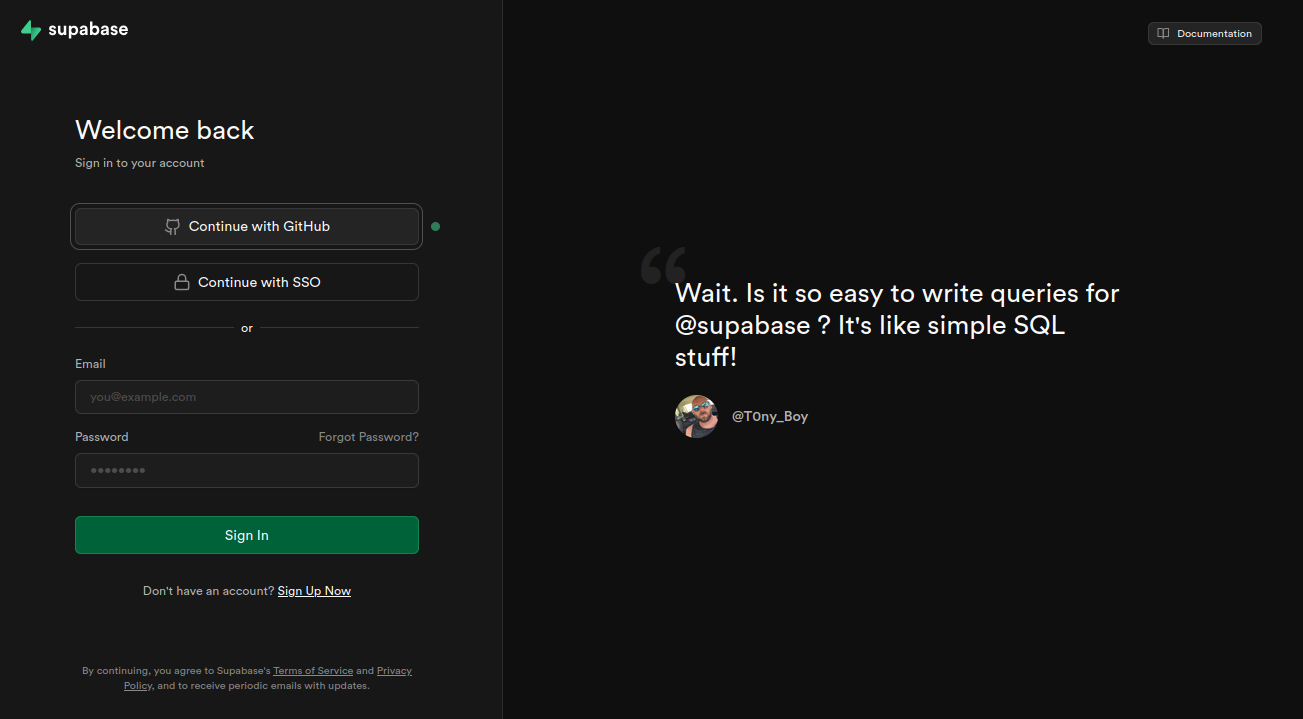
1. **Go to [Supabase](https://app.supabase.com)** and sign up/login
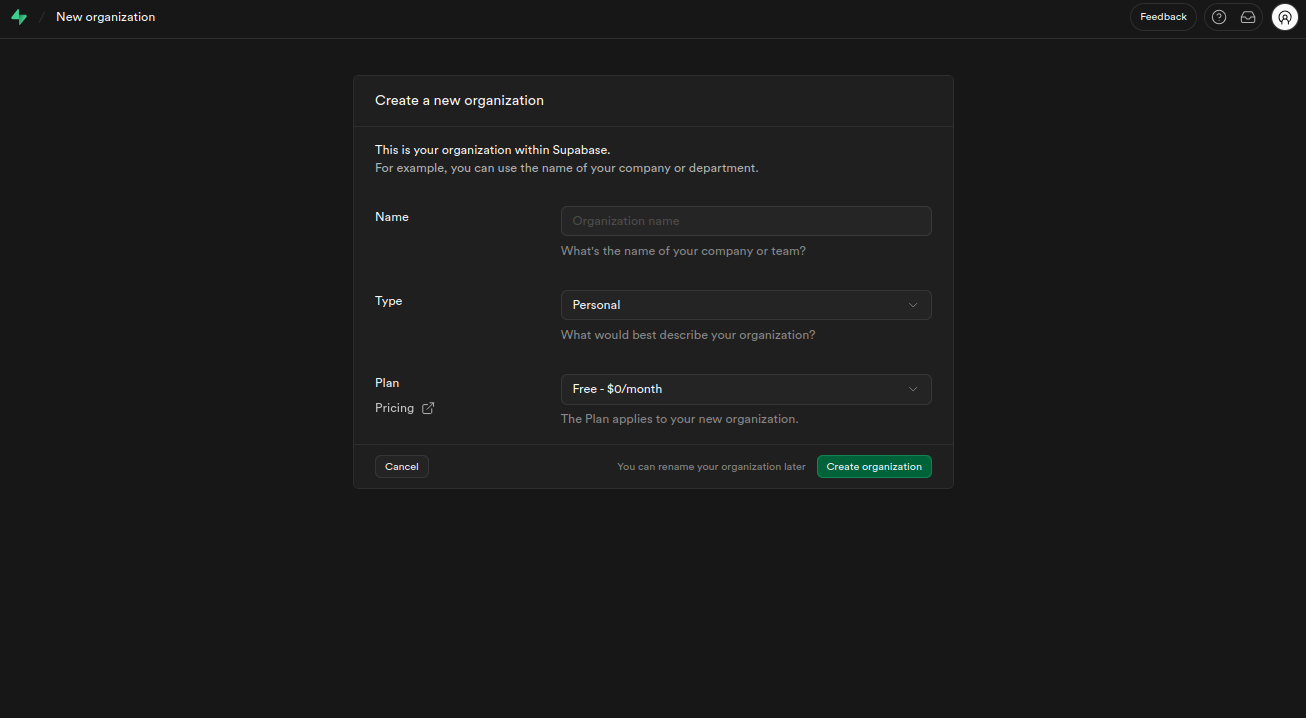
2. **Create a new organization**
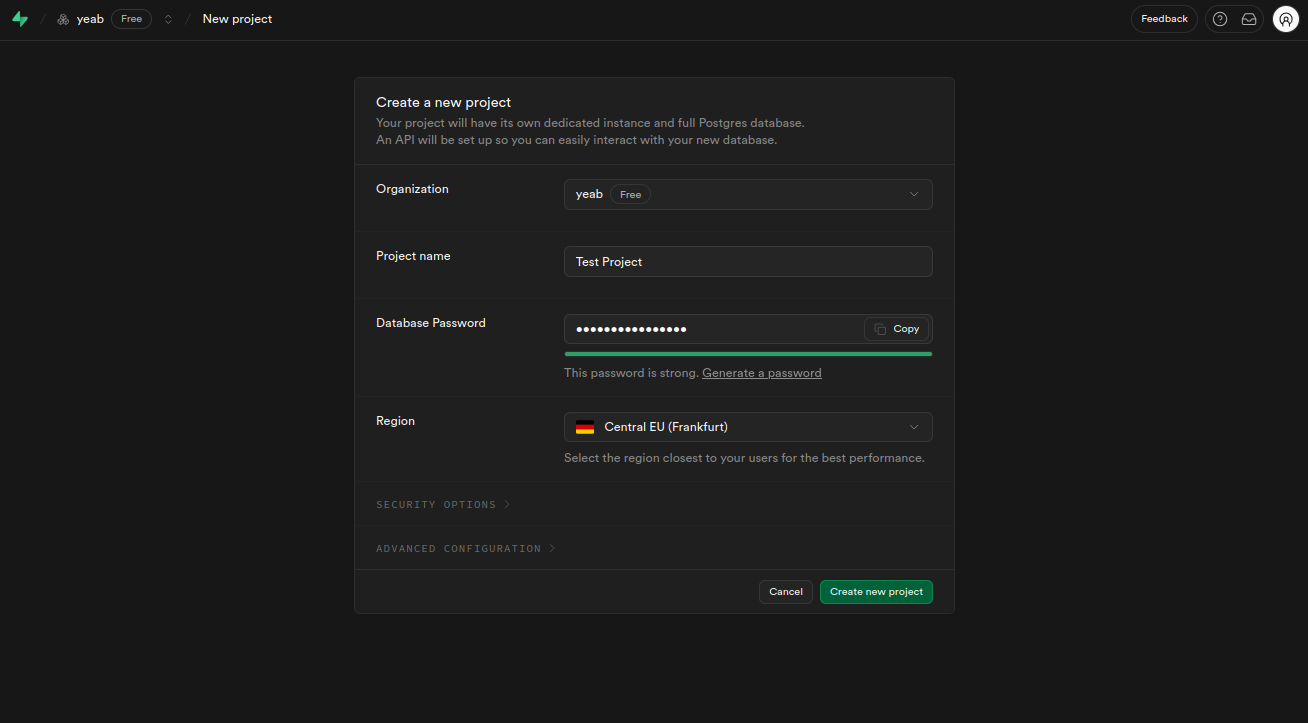
3. **Create a new project**
* Choose a name for your project
* **Important:** Save the database password - you'll need it later
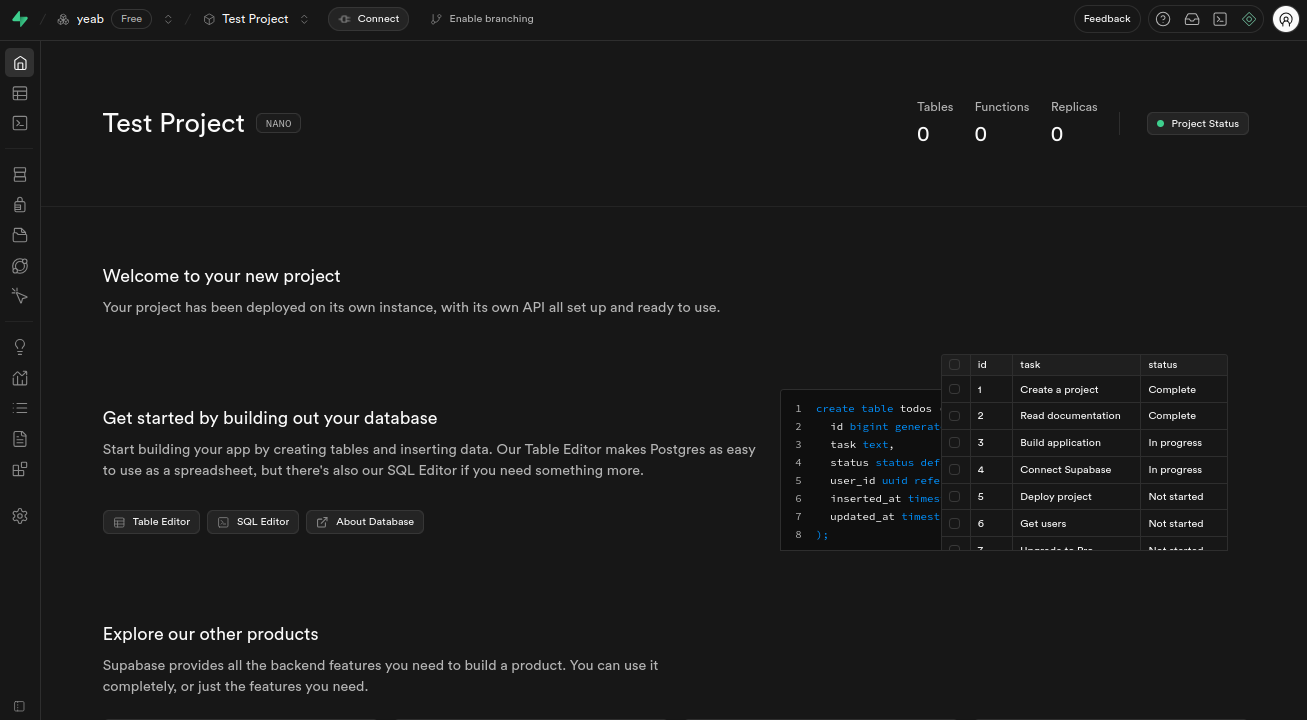
4. **Get your database connection strings:**
* Click "Connect" in the top center of your dashboard
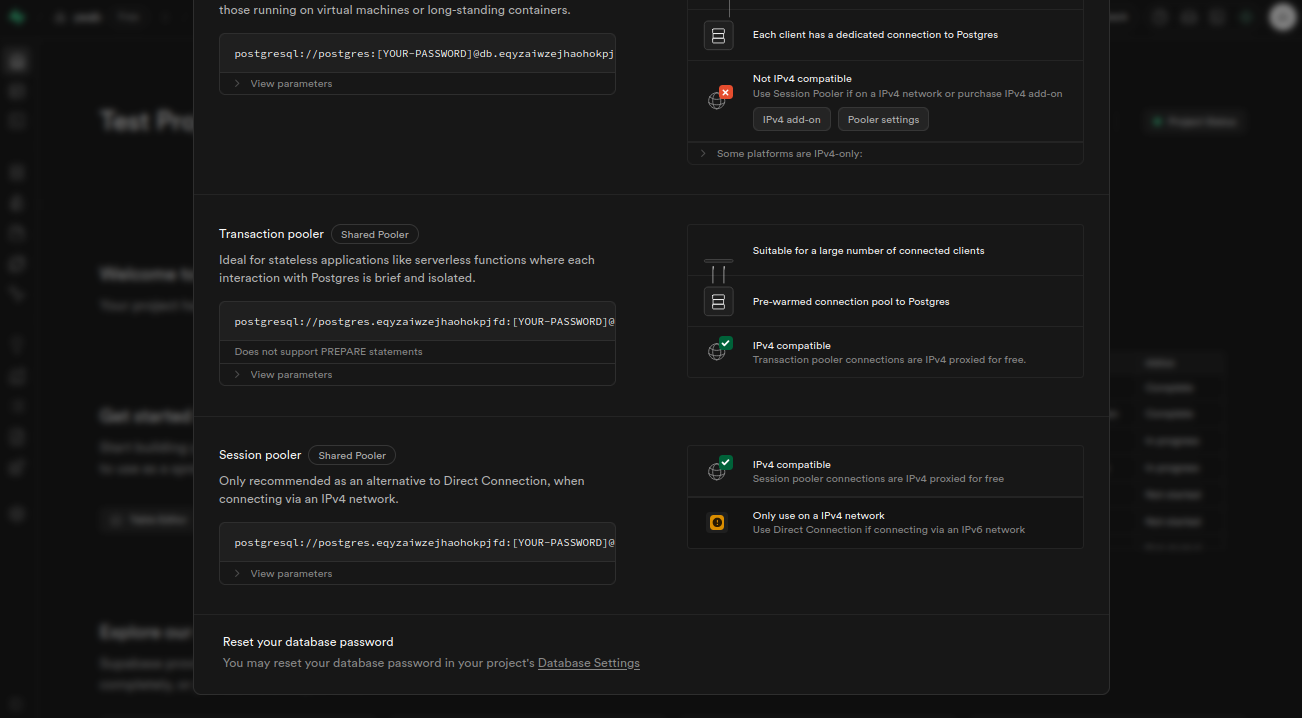
* Copy both connection strings:
* **Transaction pooler** (for DATABASE\_URL)
* **Session pooler** (for DIRECT\_URL)
5. **Add to `apps/server/.env`:**
```env theme={null}
DATABASE_URL=your_transaction_pooler_url
DIRECT_URL=your_session_pooler_url
```
### 2.2 Create CMS Database
**Why a separate database?** The CMS needs its own database to keep content separate from your main app data.
1. **Create a second Supabase project** following the same steps above
2. **Get the connection string** (you only need one this time)
3. **Add to `apps/cms/.env`:**
```env theme={null}
DATABASE_URI=your_cms_database_url
```
***
## Step 3: Authentication Setup
**What is BetterAuth?** It handles user login/signup, sessions, and OAuth integrations.
### 3.1 Generate Authentication Secret
1. **Generate a secure secret:**
```bash theme={null}
openssl rand -hex 16
```
2. **Add to `apps/server/.env`:**
```env theme={null}
BETTER_AUTH_SECRET=your_generated_secret
BETTER_AUTH_URL=http://localhost:3000
CORS_ORIGIN=http://localhost:3001
```
### 3.2 Google OAuth Setup
**Why Google OAuth?** It allows users to sign in with their Google accounts.
1. **Visit [Google Cloud Console](https://console.cloud.google.com)**
2. **Create a new project** or select an existing one
3. **Enable Google+ API:**
* Go to APIs & Services → Library
* Search for "Google+ API" and enable it
4. **Set up OAuth credentials:**
* Go to APIs & Services → Credentials
* Create OAuth 2.0 Client ID
* Set these values:
* **Authorized JavaScript origins:** `http://localhost:3000`, `http://localhost:3001`
* **Authorized redirect URIs:** `http://localhost:3000/api/auth/callback/google`
5. **Watch this helpful video for detailed setup:**
6. **Add to `apps/server/.env`:**
```env theme={null}
GOOGLE_CLIENT_ID=your_google_client_id
GOOGLE_CLIENT_SECRET=your_google_client_secret
```
***
## Step 4: Email Service Setup (Resend)
**What is Resend?** It sends transactional emails like password resets and welcome emails.
### 4.1 Create Resend Account
1. **Visit [Resend](https://resend.com)** and sign up
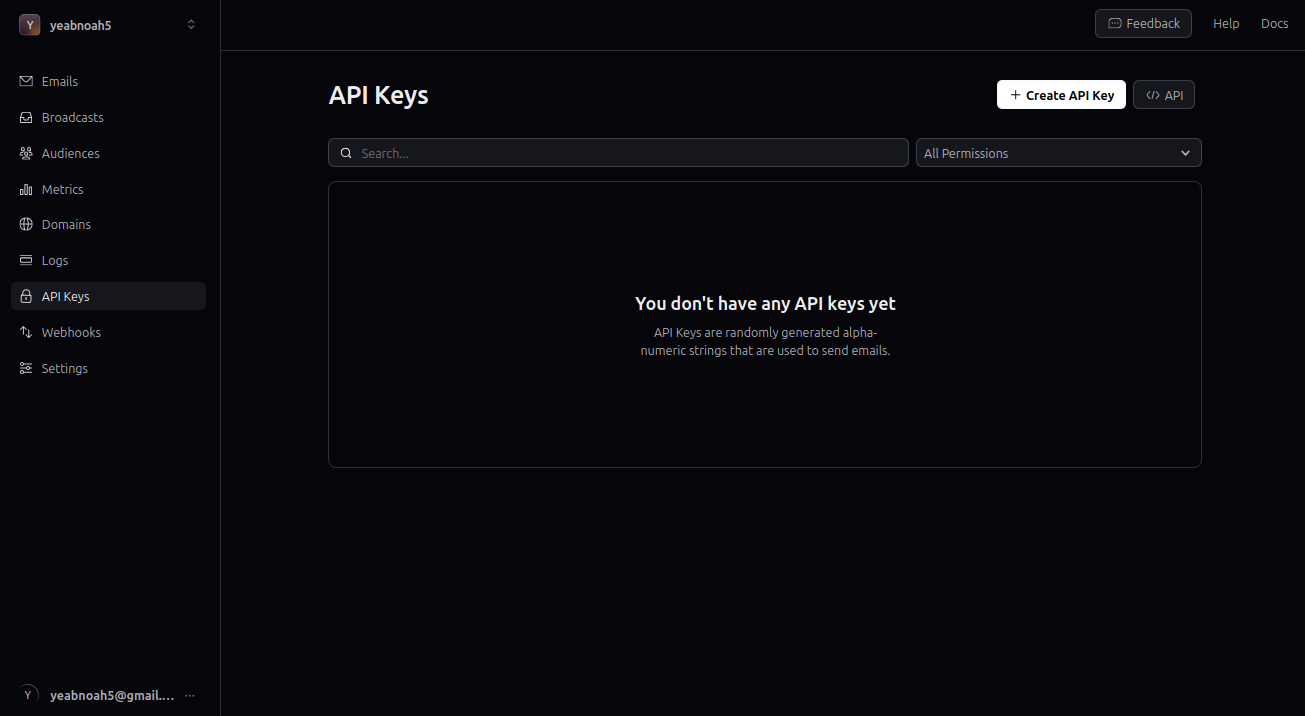
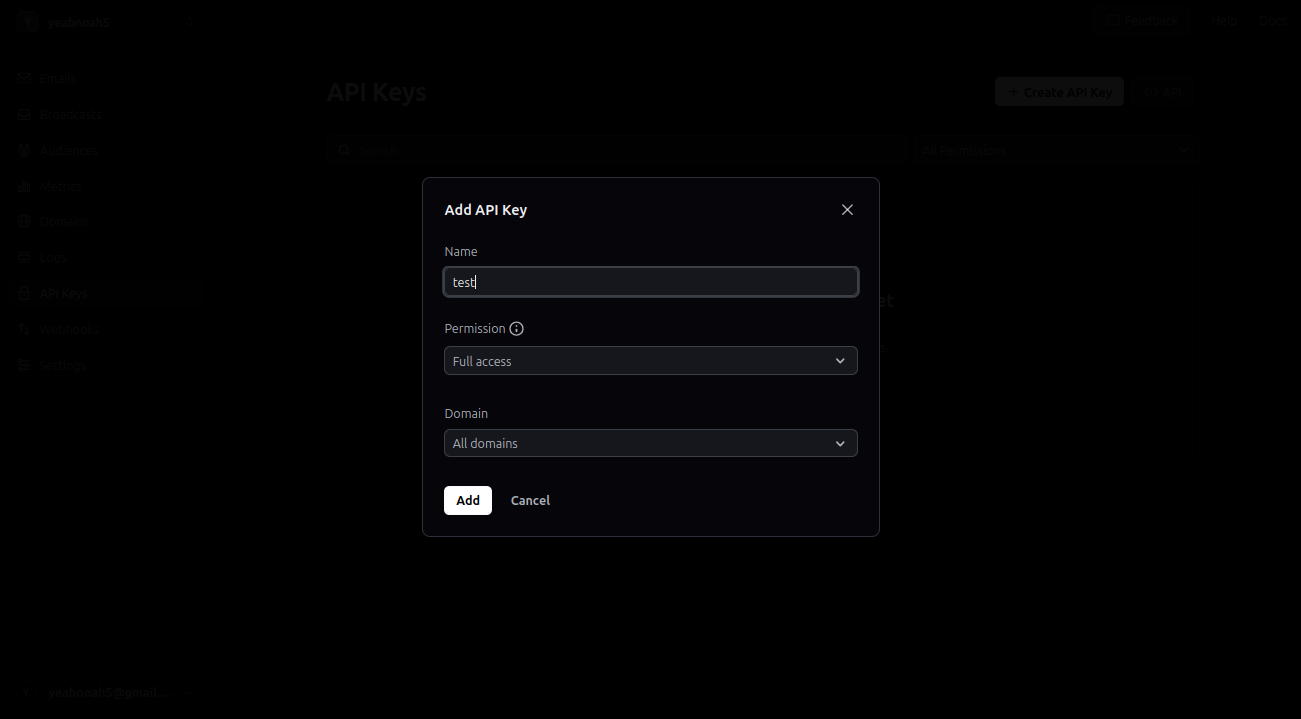
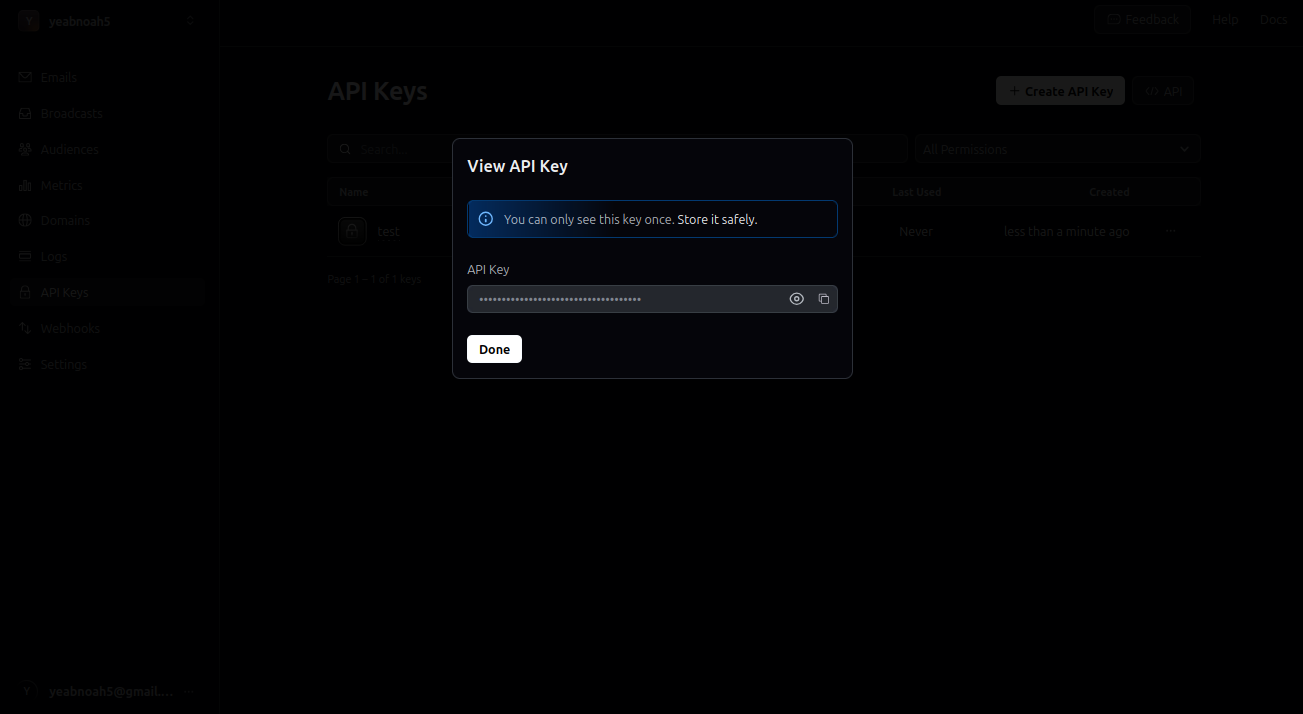
2. **Create an API Key:**
* Go to API Keys section
* Click "Create API Key"
* Copy the key (starts with `re_`)
3. **Add to `apps/server/.env`:**
```env theme={null}
RESEND_API_KEY=re_your_api_key
```
***
## Step 5: Payment Setup (Stripe)
**What is Stripe?** It handles all payment processing, subscriptions, and billing.
### 5.1 Basic Stripe Setup
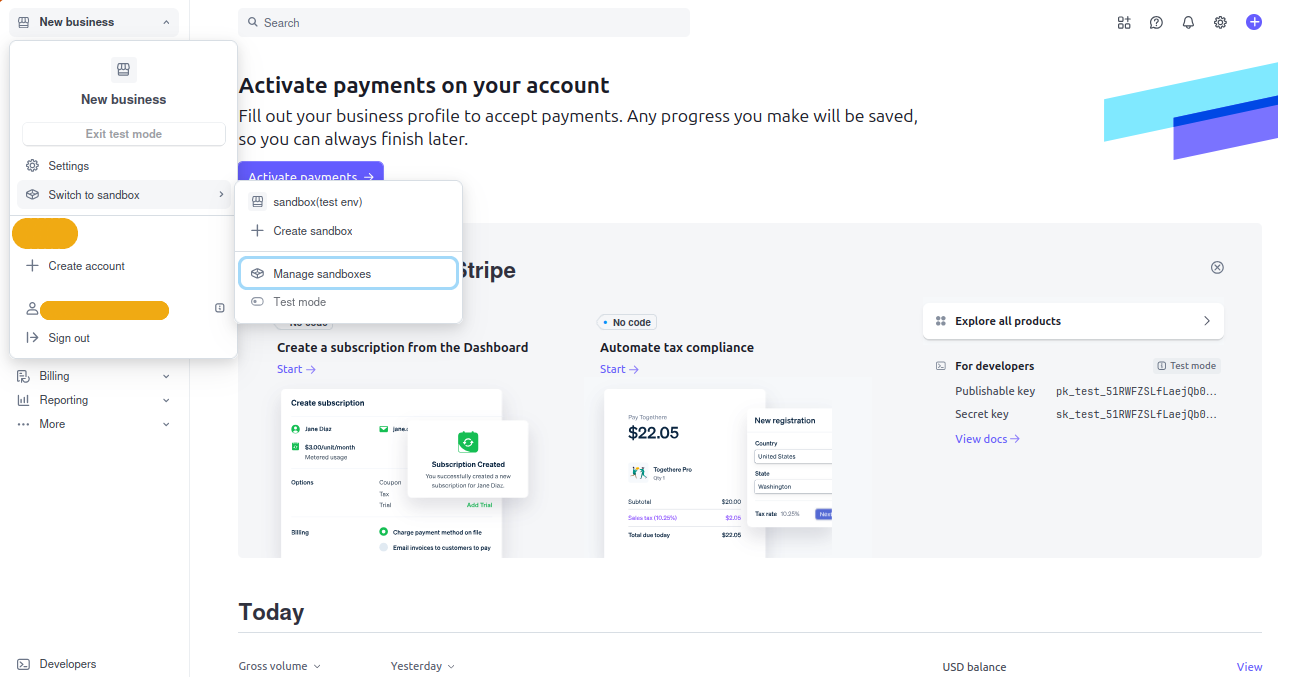
1. **Visit [Stripe](https://stripe.com)** and login
2. **Enable Test Mode** (toggle in top right)
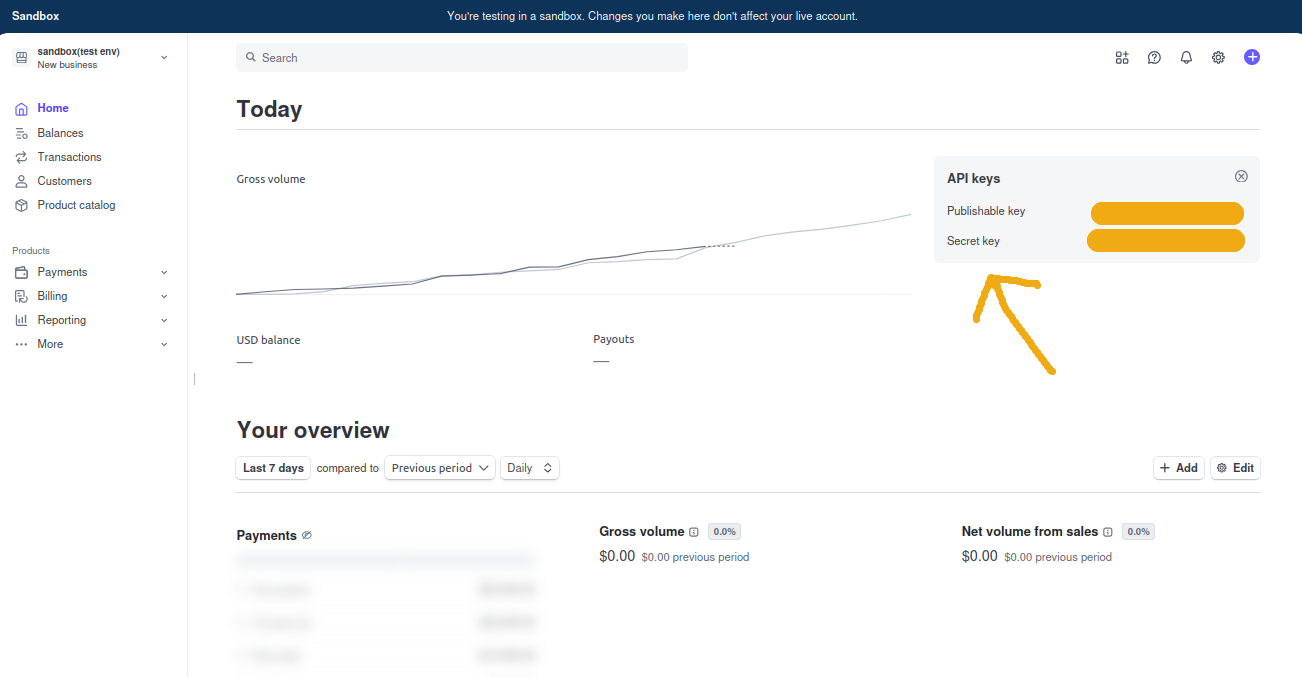
3. **Get your Secret Key:**
* Go to Developers → API Keys
* Copy the Secret Key (starts with `sk_test_`)
### 5.2 Create a Product
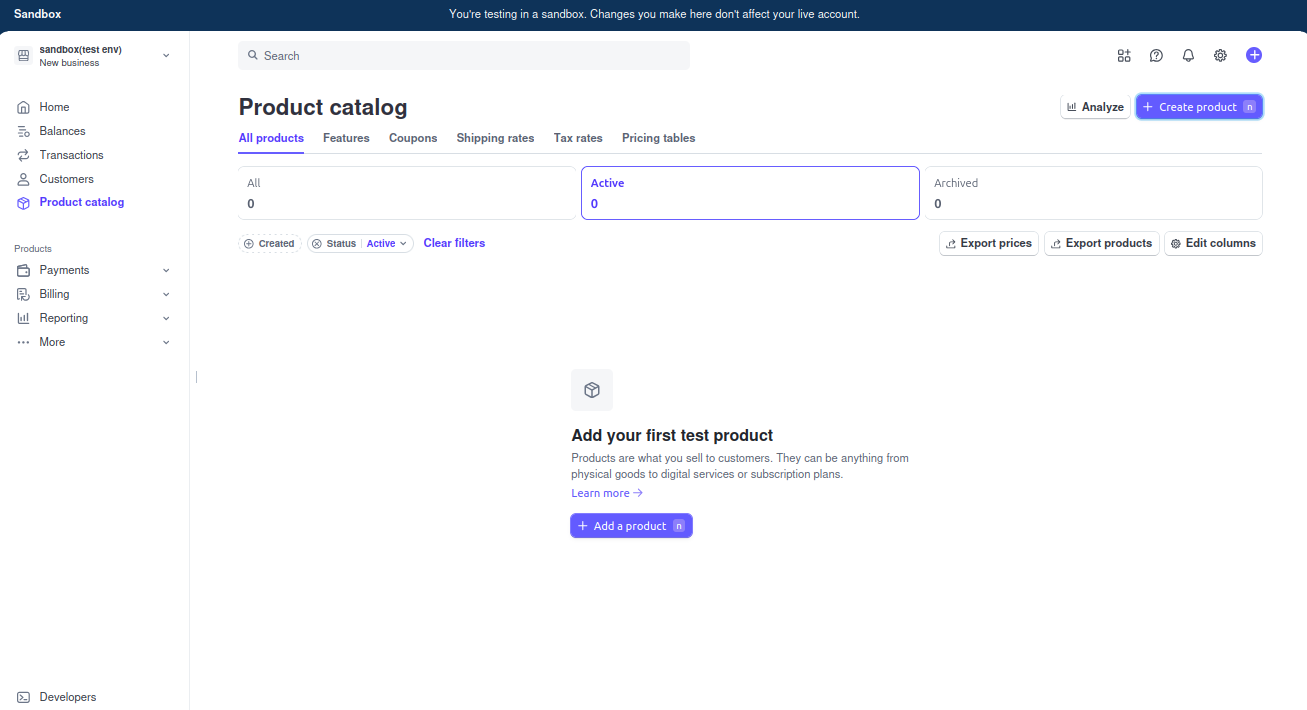
1. **Go to Products → Add Product**
2. **Set up your product details:**
* Name (e.g., "Pro Subscription")
* Price (e.g., \$9.99/month)
* Currency (USD)
3. **Copy the Price ID** (starts with `price_`)
4. **Add to `apps/server/.env`:**
```env theme={null}
STRIPE_SECRET_KEY=sk_test_your_secret_key
STRIPE_TEST_PRODUCT=price_your_price_id
```
### 5.3 Webhook Setup (Optional but Recommended)
**Why webhooks?** They notify your app when payments succeed or fail.
1. **Install ngrok** (for local development):
```bash theme={null}
# Follow instructions at https://ngrok.com/
ngrok http 3000
```
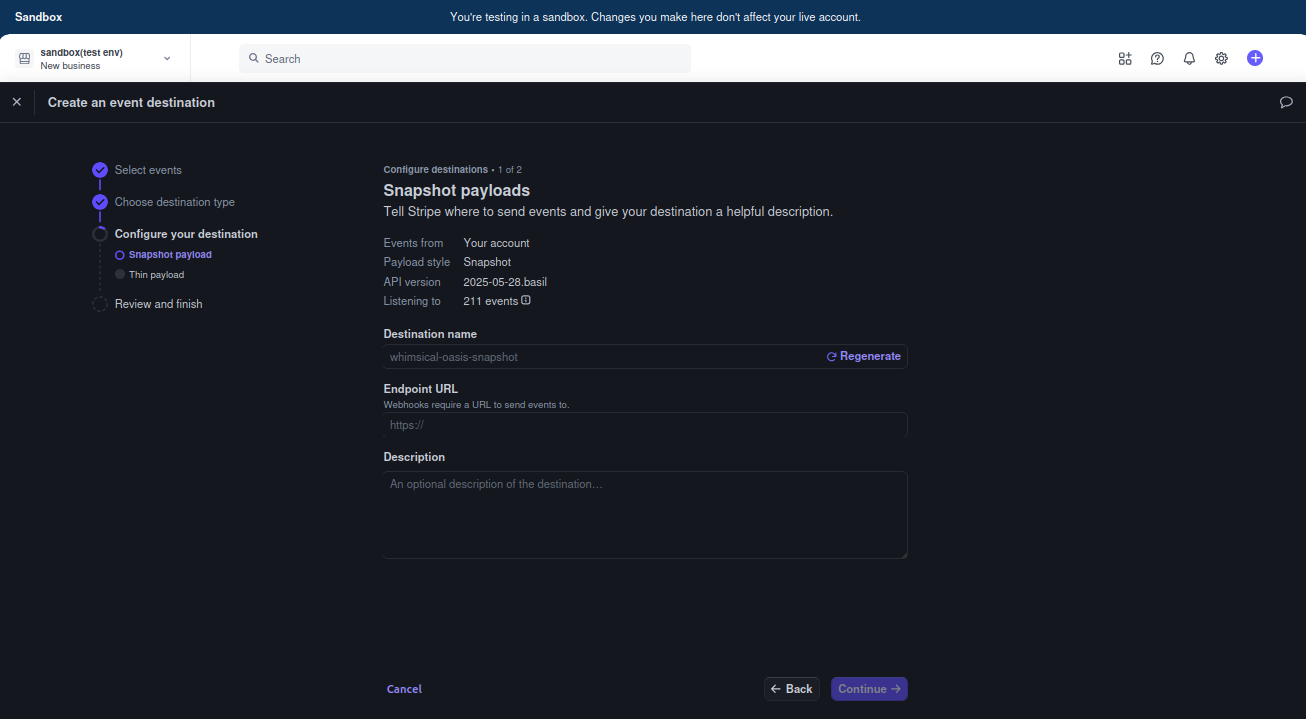
2. **In Stripe Dashboard:**
* Go to Developers → Webhooks → Add Endpoint
* Enter your ngrok URL: `https://your-ngrok-url.ngrok.io/api/webhooks/stripe`
* Select events or choose "Send all events"
3. **Copy the Webhook Signing Secret and add to `apps/server/.env`:**
```env theme={null}
STRIPE_WEBHOOK_SECRET=whsec_your_webhook_secret
```
***
## Step 6: AI Integration (OpenRouter)
**What is OpenRouter?** It provides access to multiple AI models through a single API.
### 6.1 Get OpenRouter API Key
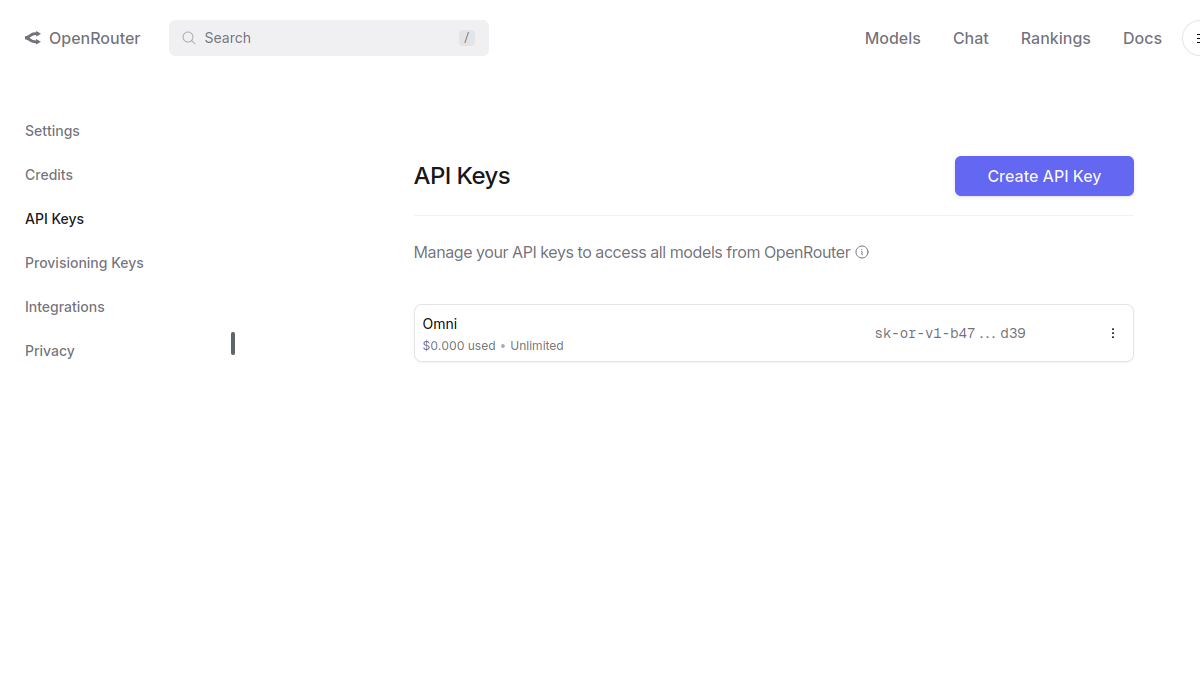
1. **Go to [OpenRouter](https://openrouter.ai/settings/keys)**
2. **Create a new API key**
3. **Copy the API key**
4. **Add to `apps/server/.env`:**
```env theme={null}
OPENROUTER_API_KEY=your_openrouter_api_key
```
***
## Step 7: CMS Secret Generation
**What is the CMS?** It's your content management system for blog posts, pages, etc.
### 7.1 Generate CMS Secret
1. **Generate a secure secret:**
```bash theme={null}
openssl rand -hex 32
```
2. **Add to `apps/cms/.env`:**
```env theme={null}
PAYLOAD_SECRET=your_generated_cms_secret
```
***
## Step 8: Frontend Configuration
**Configure the frontend app** to connect to your backend services.
### 8.1 Frontend Environment Variables
**Add to `apps/web/.env`:**
```env theme={null}
NEXT_PUBLIC_SERVER_URL=http://localhost:3000
NEXT_PUBLIC_APP_URL=http://localhost:3001
PAYLOAD_PUBLIC_SERVER_URL=http://localhost:3003
```
***
## Step 9: Database Migration
**Set up your database tables** using Prisma (database toolkit).
### 9.1 Run Database Setup
```bash theme={null}
# Navigate to server directory
cd apps
# Generate Prisma client (creates database connection code)
bun run db:generate
# Create initial migration (sets up database structure)
bun run db:migrate
# Push schema changes to database (applies the structure)
bun run db:push
```
**What these commands do:**
* `prisma generate`: Creates the database client code
* `prisma migrate dev`: Creates and applies database migrations
* `prisma db push`: Ensures all schema changes are applied
***
## Step 10: Launch Your App! 🚀
### 10.1 Start All Services
Since this is a **turborepo** project, you can start all services with a single command:
```bash theme={null}
# From the root directory
bun dev
```
This will automatically start:
* **Backend Server** on port 3000
* **Frontend App** on port 3001
* **CMS** on port 3003
**Turborepo Magic:** The `bun dev` command runs all three services in parallel automatically. You'll see logs from all services in one terminal window.
### 10.2 Alternative: Individual Services
If you prefer to run services separately (for debugging or development), you can use individual terminals:
Click to see individual terminal commands
**Terminal 1 - Backend Server:**
```bash theme={null}
cd apps/server
bun dev
```
**Terminal 2 - Frontend App:**
```bash theme={null}
cd apps/web
bun dev
```
**Terminal 3 - CMS:**
```bash theme={null}
cd apps/cms
bun dev
```
### 10.3 Access Your Apps
* **Frontend:** [http://localhost:3001](http://localhost:3001)
* **Backend API:** [http://localhost:3000](http://localhost:3000)
* **CMS:** [http://localhost:3003](http://localhost:3003)
***
## Environment Variables Summary
Here's a complete overview of all the environment variables you should have configured:
Server (.env)Web (.env)CMS (.env)
```env theme={null}
# Database
DATABASE_URL=your_supabase_transaction_pooler_url
DIRECT_URL=your_supabase_session_pooler_url
# Authentication
BETTER_AUTH_SECRET=your_generated_secret
BETTER_AUTH_URL=http://localhost:3000
CORS_ORIGIN=http://localhost:3001
# Google OAuth
GOOGLE_CLIENT_ID=your_google_client_id
GOOGLE_CLIENT_SECRET=your_google_client_secret
# Email
RESEND_API_KEY=re_your_api_key
# Payments
STRIPE_SECRET_KEY=sk_test_your_secret_key
STRIPE_TEST_PRODUCT=price_your_price_id
STRIPE_WEBHOOK_SECRET=whsec_your_webhook_secret
# AI
OPENROUTER_API_KEY=your_openrouter_api_key
```
```env theme={null}
NEXT_PUBLIC_SERVER_URL=http://localhost:3000
NEXT_PUBLIC_APP_URL=http://localhost:3001
PAYLOAD_PUBLIC_SERVER_URL=http://localhost:3003
```
```env theme={null}
DATABASE_URI=your_cms_supabase_url
PAYLOAD_SECRET=your_generated_cms_secret
```
***
## Troubleshooting
### Common Issues
**🔥 "Database connection failed"**
* Double-check your Supabase connection strings
* Ensure your database is running
* Verify you copied the correct pooler URLs
**🔥 "Authentication not working"**
* Make sure your Google OAuth URLs are correct
* Check that your BETTER\_AUTH\_SECRET is properly set
* Verify Google+ API is enabled
**🔥 "Payments not processing"**
* Ensure you're in Stripe test mode
* Check that your webhook endpoint is correct
* Verify your product price ID is accurate
**🔥 "Port already in use"**
* Kill existing processes: `lsof -ti:3000 | xargs kill -9`
* Or use different ports in your environment variables
### Getting Help
* **Documentation:** Check the individual service docs
* **Community:** Join our Discord for support
* **Issues:** Report bugs on GitHub
***
## Next Steps
🎉 **Congratulations!** Your BetterBoilerplate is now running. Here's what you can do next:
1. **Customize the frontend** - Edit components in `apps/web/src/components`
2. **Add API endpoints** - Create new routes in `apps/server/src/routes`
3. **Configure CMS** - Add content types in `apps/cms/src/collections`
4. **Set up production** - Deploy to Vercel, Railway, or your preferred platform
5. **Add features** - Extend with additional integrations and functionality
**Happy building!** 🚀
 2. **Create a new organization**
 3. **Create a new project**
* Choose a name for your project
* **Important:** Save the database password - you'll need it later
3. **Create a new project**
* Choose a name for your project
* **Important:** Save the database password - you'll need it later
 4. **Get your database connection strings:**
* Click "Connect" in the top center of your dashboard
4. **Get your database connection strings:**
* Click "Connect" in the top center of your dashboard
 * Copy both connection strings:
* **Transaction pooler** (for DATABASE\_URL)
* **Session pooler** (for DIRECT\_URL)
* Copy both connection strings:
* **Transaction pooler** (for DATABASE\_URL)
* **Session pooler** (for DIRECT\_URL)
 5. **Add to `apps/server/.env`:**
```env theme={null}
DATABASE_URL=your_transaction_pooler_url
DIRECT_URL=your_session_pooler_url
```
### 2.2 Create CMS Database
**Why a separate database?** The CMS needs its own database to keep content separate from your main app data.
1. **Create a second Supabase project** following the same steps above
2. **Get the connection string** (you only need one this time)
3. **Add to `apps/cms/.env`:**
```env theme={null}
DATABASE_URI=your_cms_database_url
```
***
## Step 3: Authentication Setup
**What is BetterAuth?** It handles user login/signup, sessions, and OAuth integrations.
### 3.1 Generate Authentication Secret
1. **Generate a secure secret:**
```bash theme={null}
openssl rand -hex 16
```
2. **Add to `apps/server/.env`:**
```env theme={null}
BETTER_AUTH_SECRET=your_generated_secret
BETTER_AUTH_URL=http://localhost:3000
CORS_ORIGIN=http://localhost:3001
```
### 3.2 Google OAuth Setup
**Why Google OAuth?** It allows users to sign in with their Google accounts.
1. **Visit [Google Cloud Console](https://console.cloud.google.com)**
2. **Create a new project** or select an existing one
3. **Enable Google+ API:**
* Go to APIs & Services → Library
* Search for "Google+ API" and enable it
4. **Set up OAuth credentials:**
* Go to APIs & Services → Credentials
* Create OAuth 2.0 Client ID
* Set these values:
* **Authorized JavaScript origins:** `http://localhost:3000`, `http://localhost:3001`
* **Authorized redirect URIs:** `http://localhost:3000/api/auth/callback/google`
5. **Watch this helpful video for detailed setup:**
6. **Add to `apps/server/.env`:**
```env theme={null}
GOOGLE_CLIENT_ID=your_google_client_id
GOOGLE_CLIENT_SECRET=your_google_client_secret
```
***
## Step 4: Email Service Setup (Resend)
**What is Resend?** It sends transactional emails like password resets and welcome emails.
### 4.1 Create Resend Account
1. **Visit [Resend](https://resend.com)** and sign up
2. **Create an API Key:**
* Go to API Keys section
* Click "Create API Key"
* Copy the key (starts with `re_`)
5. **Add to `apps/server/.env`:**
```env theme={null}
DATABASE_URL=your_transaction_pooler_url
DIRECT_URL=your_session_pooler_url
```
### 2.2 Create CMS Database
**Why a separate database?** The CMS needs its own database to keep content separate from your main app data.
1. **Create a second Supabase project** following the same steps above
2. **Get the connection string** (you only need one this time)
3. **Add to `apps/cms/.env`:**
```env theme={null}
DATABASE_URI=your_cms_database_url
```
***
## Step 3: Authentication Setup
**What is BetterAuth?** It handles user login/signup, sessions, and OAuth integrations.
### 3.1 Generate Authentication Secret
1. **Generate a secure secret:**
```bash theme={null}
openssl rand -hex 16
```
2. **Add to `apps/server/.env`:**
```env theme={null}
BETTER_AUTH_SECRET=your_generated_secret
BETTER_AUTH_URL=http://localhost:3000
CORS_ORIGIN=http://localhost:3001
```
### 3.2 Google OAuth Setup
**Why Google OAuth?** It allows users to sign in with their Google accounts.
1. **Visit [Google Cloud Console](https://console.cloud.google.com)**
2. **Create a new project** or select an existing one
3. **Enable Google+ API:**
* Go to APIs & Services → Library
* Search for "Google+ API" and enable it
4. **Set up OAuth credentials:**
* Go to APIs & Services → Credentials
* Create OAuth 2.0 Client ID
* Set these values:
* **Authorized JavaScript origins:** `http://localhost:3000`, `http://localhost:3001`
* **Authorized redirect URIs:** `http://localhost:3000/api/auth/callback/google`
5. **Watch this helpful video for detailed setup:**
6. **Add to `apps/server/.env`:**
```env theme={null}
GOOGLE_CLIENT_ID=your_google_client_id
GOOGLE_CLIENT_SECRET=your_google_client_secret
```
***
## Step 4: Email Service Setup (Resend)
**What is Resend?** It sends transactional emails like password resets and welcome emails.
### 4.1 Create Resend Account
1. **Visit [Resend](https://resend.com)** and sign up
2. **Create an API Key:**
* Go to API Keys section
* Click "Create API Key"
* Copy the key (starts with `re_`)
 3. **Add to `apps/server/.env`:**
```env theme={null}
RESEND_API_KEY=re_your_api_key
```
***
## Step 5: Payment Setup (Stripe)
**What is Stripe?** It handles all payment processing, subscriptions, and billing.
### 5.1 Basic Stripe Setup
1. **Visit [Stripe](https://stripe.com)** and login
2. **Enable Test Mode** (toggle in top right)
3. **Add to `apps/server/.env`:**
```env theme={null}
RESEND_API_KEY=re_your_api_key
```
***
## Step 5: Payment Setup (Stripe)
**What is Stripe?** It handles all payment processing, subscriptions, and billing.
### 5.1 Basic Stripe Setup
1. **Visit [Stripe](https://stripe.com)** and login
2. **Enable Test Mode** (toggle in top right)